How to access your imec information
Information security is our top priority. This entails making sure you have access to the right information at the right time. If you are looking to access information in the context of an imec event, please consult your invitation for instructions. If you are looking to access information in general collaboration, the following guidelines aim to navigate you through the imec information landscape.
How to sign-in and authenticate?
- Go to the sign-in page. You can find the link to this page in an imec invitation. We recommend bookmarking this page for easy reference afterward.
- Provide your sign-in credentials. Note that this is your company-own corporate e-mail account and password. If you have not previously set up this account, a set-up wizard will guide you through the necessary steps.
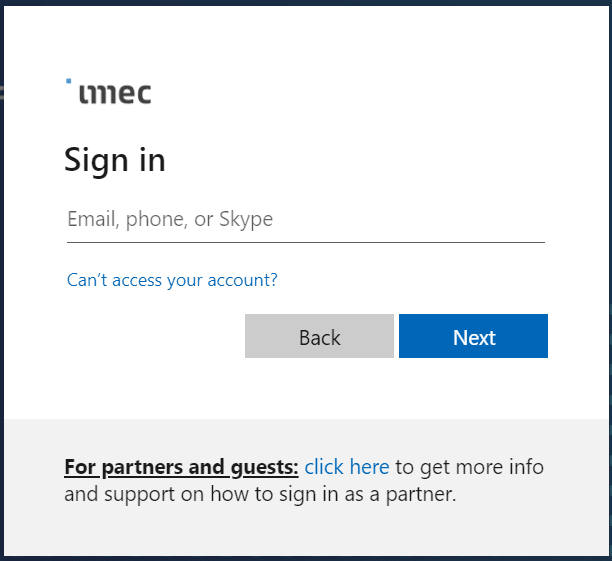
If you do not see this window, contact your IT administrator to allow access to this site.
- Depending on your company’s set-up please
- provide your previously chosen password and/or complete additional verification (MFA) on this, or
- enter the code sent to your account by email, or
- enter your corporate credentials in your company’s login portal, or
- if your company does not enforce MFA, you will prompted to set this up.
- A pop-up will request permissions, please accept these. This is only the case for first-time set-up.
- Once accepted, you will see the imecTerms of Use. Click on the imec Terms of Use to see the content.
- After accepting the imec Terms of Use, optionally you see a last step, you can choose whether you want to sign in every time.
- You can now start using imec applications.
Understanding UPN vs Email for Guest Sign-In at imec
What is a UPN?
A User Principal Name (UPN) is the unique identifier for your account in your organization’s directory.
- It usually looks like an email address (e.g., firstname.lastname@yourcompany.com), but it is specifically tied to your identity in your company’s IT system.
- Your UPN may differ from your regular email address if your organization uses aliases or custom domains – e.g.:
- Email: john.doe@yourcompany.com
- UPN: jdoe@yourcompany.com
What is my email address?
Your email address is what you use for sending and receiving emails.
- In many cases, your email address and UPN are the same.
- However, if your company uses multiple domains or aliases, they might be different.
Which one should I use to log in to imec?
- Start with your corporate email address as provided by your company.
- If sign-in fails, try using your UPN (check with your IT administrator if you’re unsure what this is).
How do I find my UPN?
- Contact your IT administrator or check your account settings in your company’s identity portal.
- If you cannot find it, your IT team can confirm the correct UPN for you.
What if I don’t know whether to use my email or UPN?
- If you’re unsure, contact your IT administrator or reach out to imec support using the details in your invitation.
- They will guide you through the correct credentials.
Frequently asked questions (FAQs)
Is it secure to use my own company (corporate) credentials to log on to imec systems?
Yes, we use Microsoft Entra B2B collaboration to give you access to our resources for secure and convenient collaboration. This ensures that your credentials are never shared with imec. When you access an imec resource or application, the authentication process is forwarded back to your own company. Your company will request you to authenticate. Upon successful authentication your company acknowledges the authentication to imec. Imec trusts this acknowledgement and allows you access to the resource or application.
I cannot accept the requested permissions, what should I do?
Some of the resources that have been shared with you may require additional permissions that are not granted by default. To access those resources, you will need to accept the requested permissions when you sign in to the imec application. However, if you cannot accept the permissions, it may be because your IT department has restricted your access rights and policies. In that case, please request your IT support to allow the permissions that you need. You can find more information about the permissions requests and how to accept them here: https://docs.microsoft.com/en-us/azure/active-directory/external-identities/redemption-experience#additional-permissions
If you are unable to accept the permissions or request your IT support to allow them, there is another option that may work for you. You can ask your IT department to trust imec as an organization or the specific application that you need to access by following the cross tenant access settings for B2B collaborations. This will enable you to access the resources that have been shared with you without requiring additional permissions. You can find more information about how to configure the cross tenant access settings here: https://learn.microsoft.com/en-us/entra/external-id/cross-tenant-access-settings-b2b-collaboration#add-an-organization
Tenant Name: imecinternational.onmicrosoft.com
Tenant GUID: a72d5a72-25ee-40f0-9bd1-067cb5b770d4
My account is blocked, what should I do?
Your account is blocked means that your company has detected suspicious activity on your account.
This could be due to several reasons, such as:
- You have entered an incorrect password too many times
- You have tried to sign in from a different location or device than usual
- You have received a phishing email that asked you to enter your credentials on a fake website
To protect your account and the resources that have been shared with you, your company has temporarily locked your account until you verify your identity, or your company administrator takes action.
Depending on your organizational policies, you can unblock yourself by resetting your password. In all other cases, you must contact your IT department or administrator to remediate the risk.
All information regarding risk remediation can be found on this website: Remediate risks and unblock users in Microsoft Entra ID Protection - Microsoft Entra ID Protection | Microsoft Learn
I did not receive an email with a onetime passcode, what should I do?
If you did not receive an email with a one-time passcode, please check your inbox for a message from invites@microsoft.com or from “imec (via Microsoft)” with e-mail address account-security-noreply@accountprotection.microsoft.com”.This is the sender address for the B2B invitation email that contains your passcode. Sometimes, this email may be filtered as spam or junk mail, so make sure to look in those folders as well.
Another possibility is that your IT department has blocked the email from Microsoft, preventing you from accessing it. In that case, you will need to contact your IT support and ask them to release the email for you. Once you have the email, you can use the one-time passcode to sign in to the Azure portal and access the resources that have been shared with you.
Sorry, we are having trouble signing you in, what should I do?
This error means that you do not have permission to access the application or resource that you are trying to use. To resolve this issue, you need to contact your imec contact person and ask them to assign you access to the application. Your imec contact person is the person who invited you to collaborate with imec. They can grant you access by adding you to a group or assigning you directly to the application. Once they do that, you should be able to sign in and use the application without any problems.
Before you contact your imec contact person, please verify that you have used the correct email address to sign in. You should use the same email address that has been provided to imec. When you contact your imec contact person, please mention the email address that you used and the name of the application that you want to access.
I don’t want to accept the terms and conditions, what should I do?
If you do not want to accept the terms and conditions, please check if there is a contractual agreement between your organization and imec that covers the use of the application. In most cases, the contractual agreement will supersede the terms and conditions, and you can accept them without any issues. However, if there is no contractual agreement with imec, or if you have any doubts or concerns, please reach out to your imec contact person to look for a solution.
How to switch between organizations in Microsoft Teams?
If you collaborate with different organizations or projects using Microsoft Teams, you may have been invited as a guest to join their teams and channels. As a guest, you can access the teams and channels where you have permissions, chat with other members, and use some of the apps and features available in Teams.
To switch between the organizations where you are a guest, you need to use the organization menu in the top-right corner of the Teams app or web browser. This menu shows your current organization and a list of other organizations where you are a guest.
When you select another organization from the menu, Teams will reload and show you the teams and channels where you are a guest in that organization. You can switch back to your home organization or any other organization at any time using the same menu.
Support
If you still encounter login issues after following the instructions and reading the FAQs, please complete this form to get support.